Distribution of SETLyze
This guide shows the developer how to distribute SETLyze, making it available for the user.
The purpose of this document is to give the developers instructions on how to distribute SETLyze. This includes building an installer for Windows, and source packages mainly for GNU/Linux users and developers. New developers will have to do this at some point, so this document was created for their convenience.
Building a Windows Installer
SETLyze should be as easy as possible to install on Windows machines and most users don’t want to worry about downloading and installing SETLyze’s pre-requisites. Thus a Windows installer (also called a “setup”) which installs SETLyze along with all its pre-requisites is required. This section explains how to create the Windows installer for SETLyze using Nullsoft Scriptable Install System (NSIS), a professional open source system to create Windows installers.
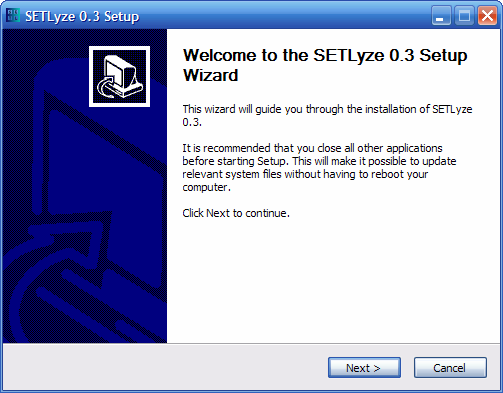
Screenshot of the Windows installer for SETLyze
To start off, you’ll need a Windows machine (preferably Windows XP or higher) to build the installer. Once you have that, read on to the next part.
Preparing your Windows environment
Before you can start building the installer, we need to make some preparations. You first need to make sure that SETLyze runs flawlesly on your Windows machine. Let’s try to get SETLyze running using only the source code. Do not use the Windows installer to get SETLyze running on your system.
First you need to download and install all of SETLyze’s pre-requisites on the Windows machine. You’ll need to download and install the tools in the order of this list below. Actually the order doesn’t matter much, but the Python modules (marked with an asterisk) need to be installed after Python itself is installed. It is important that you get the right versions as well. If no version number is given in the list below, than it means you can get the latest version. The tools marked with an asterisk (*) are Python modules, meaning they are available for different versions of Python. Since we’re using Python 2.7, it is required that you download the versions for Python 2.7. Look at the suffix of the installer’s filenames, they should end with “-py2.7.exe”. Download only 32bit versions of the tools below. The 32bit installers often have “win32” or “x86” (not “x86-64”) in the filename.
- Python (>=2.7 & <3)
- R (=2.12.1)
- PyGTK (bundle with PyCairo, PyGObject, GTK+ 2.24.0) (=2.24.0) *
- RPy (>=1.0.3) *
- xlrd (>=0.8.0) *
- Python Win32 Extensions (>=218) *
SETLyze will probably run fine with Python 2.6 too, but the latest Python 2.7 is recommended and used in this tutorial.
We are specifically using GTK+ version 2.24.0 for Windows. At the time of writing this there are also GTK+ 2.24.8 and 2.24.10 available for Windows, but we are not using those versions because of a huge memory leak (bug 685959) that was introduced in GTK+ 2.24.8 (fixed in 2.24.14). The memory leak causes SETLyze to use a huge amount of memory which results in a crash when running long batch analyses.
Also notice that we are specifically using R version 2.12.1. This is because
the RPy module must correspond to the version of R and Python you have
installed. The latest version of RPy at the time of writing this is version
1.0.3, which has the filename rpy-1.0.3.win32-py2.7-R.2.12.1.exe.
This means it requires R version 2.12.1. There is also RPy2, a
redesign and rewrite of RPy. During the development of the initial version
of SETLyze, it was too hard to get RPy2 working well on Windows, which is why
was decided to use the older but stable RPy. It is possible to migrate to RPy2
and newer versions of R, but this requires changes in the source code of
SETLyze, as RPy2 works slightly different.
Running and Testing SETLyze
Now that you have installed all of SETLyze’s pre-requisites, you can try to run SETLyze. First obtain a copy of SETLyze’s Git repository (see Obtaining the source code). We will use the SETLyze Git repository to build the Windows installer.
Note
It is important that you get the Git repository, not just the code from a source package.
The Git repository contains a file src/setlyze.pyw. This is the executable
for SETLyze. On Windows, you should run it with the command
python -d src/setlyze.pyw from a DOS window so you can see any error/debug
messages returned by SETLyze. After you have thoroughly tested SETLyze and
found no problems or error messages, you can continue with the next step.
Preparing the Distribution Folder
Not all files required for creating a Windows installer are included in the Git repository for SETLyze. So you need to manually copy some extra files to the folder. First I will explain some of the important files and folders.
- win32/
- This folder contains some files required for creating the Windows installer.
- win32/dependencies/
- This folder is for third party Windows installers of some of SETLyze’s pre-requisites that will be incorporated in SETLyze’s Windows installer. For SETLyze 1.0, this folder must just contain the installer for R 2.12.1.
- win32/setlyze_setup_modern.nsi
- This is the NSIS script we will use to build SETLyze’s Windows installer. This script is a regular text file. You can open it in a text editor (e.g. Notepad++ or gedit). This script contains all the information required for building the Windows installer.
- src/
- This folder contains SETLyze’s main code base.
- src/build-win32-exe.py
This script is used to build the Windows executable for SETLyze. This script uses py2exe for that. This script is not intended for installing SETLyze.
FYI: It would make more sense to put this file in the ‘win32’ folder, but SETLyze’s module folder (
src/setlyze/) needs to be in the same folder as this script.- src/doc-src/source/
This folder contains the source files of the documentation. The source files end with the extension ”.rst”. You can edit these with a text editor. After editing the source files (
*.rst) for the documentation, you can use the make files (“Makefile” on Linux, “make.bat” on Windows) to generate the actual HTML documentation. Refer to the Sphinx documentation for instructions.The
Makefilecontains a custom targethtml2which is similar to the defaulthtmltarget, but uses the-Eswitch of sphinx-build so that all source files are read. This is useful when some parts of the documentation aren’t fully updated.The generated documentation is put in
src/setlyze/docs/.
To prepare the folder containing SETLyze’s Git repository for creating
distributions, you need to copy the Windows installer for R 2.12.1 in the
win32/dependencies folder. The installer is called R-2.12.1-win.exe
and can be downloaded from the R website.
Building the Windows Executable for SETLyze
The next step is to create a Windows executable for SETLyze. From now on, you
need to be at a Windows machine (notice the use of backslashes). At this point,
one can start SETLyze by running setlyze.pyw from the Git repository.
So setlyze.pyw is SETLyze’s executable, but it is a regular Python script,
and one needs to have Python and all of SETLyze’s pre-requisites installed to
run the script. We don’t want Windows users to have to download and install
all these extra tools. So before creating the installer, we’re going to create
a special Windows executable (setlyze.exe) which does not require users
to have Python and all the pre-requisites installed (with one exception). For
this purpose we’re going to use py2exe. Download
the latest py2exe for Python 2.7 from here
and install it on your Windows machine.
Once you have py2exe installed, building the Windows executable should be a
breeze with the provided src\build-win32-exe.py. Open up a DOS window and
run the following command:
cd src\
python build-win32-exe.py py2exe
Note
Running Python from the command-line (or DOS) requires that you have Python in your PATH environment variable. Python is not added to PATH by default. If the above command gives you a message like:
“‘python’ is not recognized as an internal or external command, operable program or batch file.”
then you need to make sure that your computer knows where to find the Python interpreter. To do this you will have to modify a variable called PATH, which is a list of directories where Windows will look for programs.
The Python on Windows FAQ explains how to do this. Search for “PATH environment variable” on that page (Ctrl+F, type “PATH environment variable”, hit Enter).
This should create a new folder called src\dist\. Open this folder in
Windows Explorer. You should now see a whole bunch of files, including
setlyze.exe.
Go ahead and see if setlyze.exe runs. Double clicking setlyze.exe
should open up SETLyze’s main window. You might notice something different
though. The dialogs look really ugly. Remember that this Windows executable
doesn’t need to have Python etc. installed. The executable is now actually
using its own copy of Python (python27.dll), GTK (libgtk-win32-2.0-0.dll),
and all the other stuff it requires. Py2exe has automatically collected all the
files required to run SETLyze and put them in one folder. But the GTK+ Runtime
requires some extra files to make the GTK dialogs look nice (py2exe doesn’t
include these files automatically). So we need to manually copy these files to
the src\dist\ folder.
First figure out where the PyGTK installer installed the GTK+ Runtime files. Open a Python interpreter and enter these commands
>>> import sys
>>> __import__('gtk')
<module 'gtk' from 'c:\Python27\lib\site-package
>>> m = sys.modules['gtk']
>>> print m.__path__[0]
'c:\\Python27\\lib\\site-packages\\gtk-2.0\\gtk'
The example output tells us that the runtime files can be found in
C:\Python27\Lib\site-packages\gtk-2.0\runtime\. Manually copy the
following folders to the src\dist\ folder:
<GTK_runtime_path>\etc\<GTK_runtime_path>\lib\Only the *.dll files from the subdirectories are needed. Remove the other files to save space.
<GTK_runtime_path>\share\From this folder only the themes/ and locale/ subdirectories are needed. Remove the other files and folders to save space. Even from the locale/ folder you don’t need all files. You can just keep the locales that are used in SETLyze (mainly locales for English), which saves a lot of space.
Again run setlyze.exe. SETLyze should now look like a native
Windows application; no more ugly dialogs. But we are not there yet. Try to
use one of SETLyze Help buttons. You’ll notice that it doesn’t work. This is
because it’s looking for the documentation files in the src\dist\docs\
folder. This folder doesn’t exist yet. The build-win32-exe.py script
doesn’t automatically copy the src\setlyze\docs\ folder to the
src\dist\ folder. This is not yet built into the build-win32-exe.py`
script, so you’ll have to copy-paste it manually.
Copy the folder src\setlyze\docs\ into the src\dist\ folder. The
contents of src\setlyze\docs\ were generated from the src\doc-src\
folder with the Sphinx documentation generator.
Again try one of SETLyze’s Help buttons. The help contents should now open in
your browser.
At this point, the src\dist\ folder contains almost all files
required to run SETLyze. I say almost, because one still needs to have R
installed to run setlyze.exe. But we’ll get to that later. Check, and
double check that setlyze.exe works the way it should.
Building the Windows Installer
Now that you have prepared the dist folder, you can start building the
Windows installer for SETLyze. The structure of the repository folder is
important because the NSIS script (“setlyze_setup_modern.nsi”) expects to find
a number of files and folders in the repository folder, and packs these into a
single installer. The files and folders it uses are as follows
.
  ├── COPYING
  ├── dist
  ├── icons
  │   └── setlyze.ico
  ├── README.md
  └── win32
      └── dependencies
             └── R-2.12.1-win.exe
Notice that you need to put the installer for R in the win32\dependencies\
folder.
Open setlyze_setup_modern.nsi in a text editor (e.g. Notepad++ or gedit)
and see if you can find the directives that load these files (hint: search
for “File”). You do not need to understand everything what’s in the NSIS
script right now. You just need to be able to edit it. All directives need
to be correct, or else building the installer will fail.
Once all files are in place, it’s time to compile the NSIS script. Compiling means that we will build the actual installer from the NSIS script. You’ll first need to download and install Nullsoft Scriptable Install System.
Once NSIS is installed, you can build the Windows installer by simply
right-clicking setlyze_setup_modern.nsi and choosing “Compile NSIS Script”.
Give NSIS a moment to process the script and compile the installer. If the
script is correct, it should produce the Windows installer in the same folder,
called something similar to setlyze-x.x-bundle-win32.exe.
Last, but not least you should test the installer. The best way to do this is on a clean installation of Windows. Meaning you should test this on a Windows machine where no other software has been installed, because only then can you really say that the installer and the resulting SETLyze executable works. An easy way to get a clean installation, is to install Windows on a virtual machine (e.g. VirtualBox) and test the installer before any other software is installed.
Building Source and Linux Binary Packages
The source package is nothing more than an archive (.tar.gz on Linux, .zip on Windows) containing the application’s source code. Distributing the application’s source code is what defines open source software. This allows everyone to see how SETLyze was created, but also to edit, use, and learn from it. This package can also be used to install SETLyze on all supported operating systems, including Windows and GNU/Linux. This part of the guide explains how to create source packages and installation packages for GNU/Linux.
From now on, well need a Linux system. Open a terminal window and cd to the
root folder of the Git repository. The command for this looks something like
this:
cd /path/to/setlyze/
Of course you need replace that path with the path to the repository folder.
Now list all files in that folder by typing ls. You might notice a file
“CMakeLists.txt”. This is a CMake configuration file and there are more of these
files in subfolders. We use CMake for creating distribution packages. Here
follow a few examples. Before we continue, create a ‘build’ folder:
mkdir build
cd build/
Now run the following command to generate the make files:
ccmake ..
This command actually reads the ‘CMakeLists.txt’ file mentioned earlier. Press
‘c’ to configure the make file. Set the “CMAKE_INSTALL_PREFIX” option to
“/usr”. Press ‘c’ again to confirm the settings. Then press ‘g’ to generate
the make files. There should now be a file called Makefile in the build/
folder. This Makefile can do awesome things, which will be demonstrated by
some examples:
To install SETLyze system-wide, run this command as root,
make install
To uninstall SETLyze from the system, run this command as root,
make uninstall
To build a source package,
make package_source
To build a binary packages (e.g. DEB and RPM packages),
make package
The resulting source or binary packages are ready for distribution. Do make sure to test the resulting packages first.